
Seller Guide: Live Events & Auctions
What are Live Events?
Live events are hosted by sellers in real-time via a video/audio stream, allowing the seller to interact directly with buyers, and showcase available animals.
- Basic + sellers with a store older than 6 months can currently list (1) one live event per month.
- The current limit is one event per seller per month, but each tier will eventually have different set limits.
- Live Events cost $10 per hour, plus $5 per listing added to the event.
- Live Events do not have to include a Live Auction or Flash Sale.
What are Live Auctions?
Live Auctions happen in real time during a seller-hosted Live Event, with buyers placing bids as it happens.
- Sellers may list an unlimited number of auctions during a Live Event.
- Each live auction can run between 1-3 minutes depending on what the seller selects.
What are Flash Sales?
Flash Sales happen in real time during a seller-hosted Live Event, where the seller sets a special price on a listing and buyers can claim the deal as it happens.
- Unless explicitly stated otherwise, all Live Auction rules apply to Flash Sales.
This article will discuss how to create a Live Event, Live Auction/Flash Sale listings.
- To learn how to create a Traditional Auction, click here.
- If you are a buyer wanting to bid on an auction, click here.
Article Contents
Important Reminders:
- All auctions are FINAL.
- Auctions can not be stopped once started.
- Bids can not be reversed once placed.
- Winning bids are to be paid in full within one (1) business day, unless otherwise extended by the seller's store policy.
- Please refer to our Terms of Service and Rules before participating in auctions.
Creating a Live Event
Create the Event
Sellers with an active Basic or higher Advertising Plan and an eligible approved store can create Live Events. To create a Live Event:
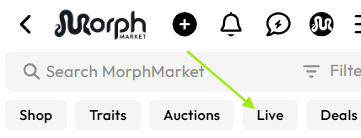
- Click on the "Live" tab.
- Click on "My Events" button in the upper right corner of the page.
- Click the "New Event" button in the upper right corner of the page.
Add Event Information
- Complete the "General Info" Form
- Title: Event Title
- Description: Event Description
- Notes: Notes will be visible on the live event for your viewers to see. This is a good place to communicate important store information or updates.
- Caption Language: Select the language to display captions in.
- Cover Image: Select a Cover Image that will display on the Live Events tab, and the individual Live Event detail page.
- We suggest that you do NOT put the date or time on this image, as that information will display automatically. We will display the time in the individual user's time zone. Adding a time on the banner may cause confusion for potential viewers who are not in the same time zone as you.
- Start Date: The Date of your Live Event.
- Start Time: The time of your Live Event.
- The event will display to potential viewers based on that individuals user's time zone.
- Explicit Language: Check this box if the event may include explicit language.
- Note: Although some explicit language is permitted, please carefully review the Prohibited Content, as well as our Terms of Service.
- Disable International Bidding: Limits bidding to your region only.
- Auction Duration: Select the duration you would like each auction to run during the event. This can range between 1 and 3 minutes.
- New User Bidding Limits: Restrict or allow bids by MorphMarket users who have not made a purchase on MorphMarket previously.
- Default (Recommended): Users who have not made a purchase are allowed to bid on up to (5) live auctions every 24 hours across all Live Events..
- Allow Users without Purchases: Users who have not made a purchase are allowed to bid on an unlimited number of your specific live auctions.
- Limit to Users with Purchases: Users without purchases can not bid on your live auctions at all.
- Note: Restricting bids to established buyers may lower bid volume and the final auction price. Not recommended
- Once the form is complete, click on the "Add Listings" button in the upper right corner of the page.
Add Live Auction Listings
Live Auctions are NOT required for Live Events, and you can skip this by clicking the "Final Review" button without adding any listings. Additionally, Auction ads can be added during the Live Event.
To add Live Auctions:
- Click the "+ Add to Queue" Button
- On this screen, select the animals you would like to add.
- Not all of your animals will display on this pop-up. If you do not see the ad you are looking for, you can use the search bar to find and select that ad.
- Once the ads are selected, you can edit the Starting Bid and Shipping amount by clicking the "Edit" button in the upper left corner.
- Once you have made any edits, click the "Done" button.
- You can rearrange the order of the listings by clicking on the three horizontal lines next to the listing details.
- Once you have finished adding your animals, click the "Final Review" button.
Note: To protect both the buyer and the seller in the event of the dispute, Live Auction Ads must abide our standard photo policies. Placeholder images are not permitted.
Final Review
- Carefully review the Event Details.
- Live Events are $10 per hour.
- Live Auctions are $5 per ad.
- If an auction ends without a winner, this charge will be adjusted accordingly.
- Once you have reviewed the details, click the acknowledgment at the bottom of the page.
- Then click "Publish Event."
Editing or Cancelling an Event
Once the event is created, you can edit it or cancel it by clicking on the pencil icon located to the left of the event title on your "My Events" page.
Running a Test/Live Event Preview
15 minutes prior to the start of your Live Event, you can run a test of the event.
- This allows you to get a preview of what you will see during the event, including your video and audio.
- To run a test, click on the "eye" icon next to your Live Event on your "My Events" Page.
- Once you are done testing, you can leave the preview, or you can use the "Go Live" button to start the event.
Starting an Event
- Events can be started up to 15 minutes early.
- When it is time to start the event it can be started in a few different ways:
- If you are doing a test event, click the "Go Live" button when you are ready to start.
- Click on the eye icon located to the left of the event title on your "My Events" page, and then click "Go Live."
- Once it is time for the event, a "Go Live" button will appear in the upper right corner of your "My Events" page.
- IMPORTANT: Make sure to enable audio and video permissions. If you do not enable these, you will need to adjust them via your individual device's settings.
- When it is time to start the event it can be started in a few different ways:
Starting an Auction
Once the event is started, you can start an auction by clicking the "Auctions" icon.
- If you selected animals to list during the event creation, the next auction animal will appear on the pop-up. Click "Start Auction"
- If you want to list a different animal that was previously added to the Event, click "View Shop" and select the ad you would like to place on Auction, the click "Confirm Selection."
- If you would like to add a new animal, click on "Add Animal."
Flash Sales
Once the event is started, you can elect to run a "Flash Sale" instead of an auction on a specific listing.
- Select the ad you would like to enable the sale on using the "Auctions" button or the "Shop" button.
- Select the "Flash Sale" options
- Enter a "Flash Sale" price
The Flash Sale will show to buyers and allow them to claim the deal. If the deal is claimed, a message thread will automatically open between the buyer and the seller via the onsite messenger, and the flash sale will end.
- Please use this message thread to communicate with the buyer directly.
- Payment will need to be arranged between the buyer and seller directly via the message thread.
- MorphMarket does not collect payment from the buyer during the event.
Live Event Features (Seller Side)
- Chat: Viewers will be able to use the live chat feature to communicate with you.
- Chat Moderation: To moderate your chat, click on the username/comment of the person you would like to moderate. You will be given the following options:
- Remove Comment
- Remove User
- Block & Report
- Notes: If you added a note during the event creation process, this will appear on the Live Event page. Viewers can click it and see the note's contents/
- "More" Icon: Clicking the "More" icon on the right side of the screen will provide you with the following options:
- Toggle Camera
- Mute
- Mirror Video
- Bid Limits
- End Event
- Show Captions
- "Shop" Icon: This will show you the animals you have selected to auction during the event and allow to select a specific one to auction, or create a new animal.
Ending an Event
- To end an event, click the "More" icon, and then click "End Event."
- Once ended, you will see an estimated price breakdown.
- This will be billed to you at the end of the month.
- If you hosted an auction a message thread between you and the buyer will automatically open.
- You will use this to arrange payment with them directly.
- Learn more about collecting payment here.
To learn how to bid on a live auction, click here.
Key Terms
Bid Sniping Prevention
To discourage bid sniping, MorphMarket employs a dynamic bidding system. If a bid is placed within the last 10 seconds of the live auction, the auction will automatically reset to 10 seconds. This ensures a fair opportunity for all participants.
Bid Increments
Bid increments are the minimum dollar amount you can increase the current highest bid by to place a new bid. The required increment depends on the current high bid for that specific auction. Bid increments are as follows:
- Auctions under $250 – $5 increments
- Auctions from $250 to $499 – $10 increments
- Auctions $500 and up – $20 increments
Collecting Payment for Auctions
When an auction ends with a winner, an onsite message thread will automatically open between you and the buyer. You will use this collect payment from them directly, using your preferred payment method(s). Auctions must be paid in full, unless otherwise stated in your store policy.
- All successful Auction bids must be paid in full within one (1) business day of the Auction ending, unless a longer timeframe is explicitly stated in the seller’s store policy or mutually agreed upon by both parties.
- Buyers are required to respond within twenty-four (24) hours of the Auction ending. Failure to respond within this timeframe constitutes non-payment and may be reported by the seller without further notice.
- If a buyer responds within the initial twenty-four (24) hour window, they are then granted one (1) full business day to submit payment in full. If payment is not received within that business day, the Auction may be reported for non-payment.
- This payment timeframe cannot be shortened
- Weekends and holidays do not count as business days.
- If a seller offers payment plans for Auctions, they must clearly state this in their store policy. Any general references to payment plans in the seller’s policy do not apply to Auctions unless specifically mentioned. Otherwise, full payment is required within one (1) business day of the Auction’s end.
- If an auction ends without a winner, sellers will not receive a credit to replace the failed auction.
- Sellers cannot charge more than the winning bid plus the listed domestic shipping amount, even if a higher amount is mentioned in the ad description, unless the winning bidder is located outside the seller’s region.
- The amount entered in the Shipping field on an auction listing is the maximum domestic shipping amount a seller can charge the winning.
- Sellers are responsible for estimating the highest possible domestic shipping rate in the Shipping field. Alternatively, sellers may choose to offer Free Shipping.
- The shipping costs shown on auction listings apply to domestic shipping within the same country only. Regions or territories outside the mainland or standard geographic boundaries of the country are not included in domestic shipping and may incur additional charges.
- Local and expo pick-up should be free unless otherwise stated in the Seller’s store policy.
- If a seller chooses to charge a fee for pickup, or if pickup is not available on certain ads, this must be clearly indicated in both the ad’s description and the store policy.
- The amount entered in the Shipping field on an auction listing is the maximum domestic shipping amount a seller can charge the winning.
Reporting an Auction for Nonpayment
As a courtesy, if a buyer fails to follow through on an auction and the auction is reported to us, we will allow the seller to offer it to the second-highest bidder or assist the seller by providing a new auction credit.
- If the buyer has failed to arrange payment after (1) business day, has not replied with (24) twenty-four hours, or has indicated that they do not plan to proceed with the auction, you can report the auction.
- To do this, click the "Report Auction" button in the messenger actions menu (the + icon) in the lower-left corner of the individual message thread on MorphMarket.
- After you report the auction, you’ll receive an automated system message in a new thread. If there was a second-highest bidder, you can offer the animal to them if you wish. You can do this using the message actions menu on that specific thread. Please remember that the runner-up is not obligated to make the purchase.
- After our team receives and reviews your report, we will follow up with you via email and may, as a courtesy, issue a new auction credit for you to use in the future.
Notifications
Buyers and sellers can enable/disable auction notifications and set their notification preferences.
- Start by accessing the Notifications page.
- This can be found by opening your user profile menu. Click "Account Settings" then "Notifications."
- Scroll down to the bottom section of this page and find the "Auctions" header.
- Check/Uncheck the notifications you would like to receive.
- Save your changes.

Rules
MorphMarket permits approved sellers to list auctions. All the rules stated for normal ads apply. Auctions are available in two formats: Traditional Auctions and Live Auctions. Flash Sales conducted during Live Events are considered part of Live Auctions. Except where expressly stated otherwise, the rules in this section apply to all formats, collectively referred to as “Auctions.”
- All Auctions are final. Failure by either party to comply with or complete an Auction in accordance with these rules may result in corrective action, including account restrictions.
- MorphMarket reserves the right to void auction results at its sole discretion in cases involving rule violations, fraud, technical errors, or other circumstances that compromise the integrity of the auction.
- All successful Auction bids must be paid in full within one (1) business day of the Auction ending, unless a longer timeframe is explicitly stated in the seller’s store policy or mutually agreed upon by both parties.
- Buyers are required to respond within twenty-four (24) hours of the Auction ending. Failure to respond within this timeframe constitutes non-payment and may be reported by the seller without further notice.
- If a buyer responds within the initial twenty-four (24) hour window, they are then granted one (1) full business day to submit payment in full. If payment is not received within that business day, the Auction may be reported for non-payment.
- This payment timeframe cannot be shortened
- Weekends and holidays do not count as business days.
- Winning bids must be paid in full unless otherwise stated in the seller's store policy.
- Payment in full includes the final auction price and all costs shown on the auction, including shipping.
- Buyers must arrange payment for the Living Item with the seller directly.
- Payment must be made using lawful payment methods accepted by the seller, as outlined in the seller’s store policy or otherwise agreed upon between the buyer and seller.
- If a seller offers payment plans for Auctions, they must clearly state this in their store policy. Any general references to payment plans in the seller’s policy do not apply to Auctions unless specifically mentioned. Otherwise, full payment is required within one (1) business day of the Auction’s end.
- By bidding on a Living Item, a buyer agrees to be bound by the seller’s store policy or the Default Store Policy. The seller can delete a bid if the buyer does not comply with the applicable store policy.
- Sellers are not required to sell or ship auctions internationally.
- Sellers may restrict sales based on destination, carrier availability, permits, or personal policy.
- Buyers are responsible for reviewing listing descriptions, Store Policies and shipping limitations before committing to a purchase or placing a bid.
- Sellers cannot charge more than the winning bid plus the listed domestic shipping amount, even if a higher amount is mentioned in the ad description, unless the winning bidder is located outside the seller’s region.
- The amount entered in the Shipping field on an auction listing is the maximum domestic shipping amount a seller can charge the winning buyer.
- Sellers are responsible for entering the highest possible domestic shipping cost in the Shipping field.
- The shipping costs shown on auction listings apply to domestic shipping within the same country only. Regions or territories outside the mainland or standard geographic boundaries of the country are not included in domestic shipping and may incur additional charges.
- Local and expo pick-up should be free unless otherwise stated in the Seller’s store policy.
- If a seller chooses to charge a fee for pickup, or if pickup is not available on certain ads, this must be clearly indicated in both the ad’s description and the store policy.
- The amount entered in the Shipping field on an auction listing is the maximum domestic shipping amount a seller can charge the winning buyer.
- It is the responsibility of the seller to be aware of and comply with all international, federal, state, and local laws related to or governing Auctions.
- If a buyer fails to complete an auction transaction for any reason, the seller may cancel the buyer’s winning bid. The seller may relist the same Living Item for Auction at the next opportunity available under the seller’s advertising plan, or list the Living Item as a regular sale listing immediately following the incomplete transaction.
- The seller may also report the auction in accordance with MorphMarket’s auction reporting requirements.
- Traditional Auctions: MorphMarket may issue an auction credit or allow the seller to offer the item to the next highest bidder.
- Live Auctions/Flash Sales: MorphMarket may reimburse the cost of the individual live auction listing, as applicable.
- The seller may also report the auction in accordance with MorphMarket’s auction reporting requirements.
- If an auction ends without a winner, the seller may relist the same Living Item for auction at the next opportunity available under the seller’s advertising plan, or list the Living Item as a regular sale listing immediately following the incomplete transaction.
- Traditional Auctions: The seller will not receive a credit to replace the failed auction.
- Live Auctions/Flash Sales: The seller will not be charged for that individual live auction listing.
- Auction messages and live chat may be used for questions and clarification only. Any attempt to negotiate pricing, arrange a sale outside of the Auction process, or otherwise circumvent the Auction is prohibited and may result in corrective action, including loss of Auction privileges.
- All Auction listings must abide the photo policies for regular ads. Placeholder images are not permitted.
- Live Auctions must comply with the media standards outlined in Section 4 of these rules.
- All participants are responsible for ensuring that photos, videos, and live chat content adhere to these standards.
- Violations may result in corrective action, including removal of content, suspension of auction privileges, or account restrictions.
- ID-verified users may place Max Bids on Traditional Auctions only.
- By submitting a Max Bid, you authorize MorphMarket to automatically place incremental bids on your behalf up to the maximum amount entered. If you win the Auction, you are responsible for the final winning bid amount plus the listed shipping cost.
- Auctions can not be enabled for crocodilians, Not-Ready animals, and Pet Only animals.
- Example photos and placeholder listings are not permitted in Live Auctions. All Live Auction listings must represent the exact individual animal being sold. Any substitution, swapping, or misrepresentation at any point during a Live Auction may result in immediate enforcement action, including suspension of auction or selling privileges.
Prohibited Content
All media, including photos, videos, and live chat content, must be appropriate for general audiences. Prohibited content includes, but is not limited to, the following:
- Nudity, sexual content, or sexually suggestive behavior
- Hate speech, harassment, or abusive language
- Illegal activity or encouragement of illegal activity
- Display or promotion of Prohibited Items
- Behavior that would make the event unsafe, hostile, or inappropriate for a general audience
Any violation may result in corrective action, including removal of content, suspension of ad or auction privileges, or account restrictions.